
How to Install IPTV on Firestick (Step by Step)
The Amazon Firestick is one of the most popular ways to watch IPTV in the UK — cheap, compact, and plugs straight into any HDMI port. Here is exactly how to get set up, from unboxing to your first stream, in under 10 minutes.
Published 31 July 2026 · 5 min read · By UniStream
What You Need Before You Start
Setting up IPTV on Firestick is straightforward as long as you have a few things ready first:
- An Amazon Firestick — any generation, including Fire TV Stick Lite and 4K Max.
- A stable internet connection — at least 10–15 Mbps for HD, 25+ Mbps for 4K.
- An active IPTV subscription — or a free trial, which we activate for you.
- An Amazon account signed into the Firestick.
Step 1: Allow Apps from Unknown Sources
By default, Firestick only allows apps from the Amazon Appstore. IPTV player apps are not listed there, so you need to enable installs from other sources first.
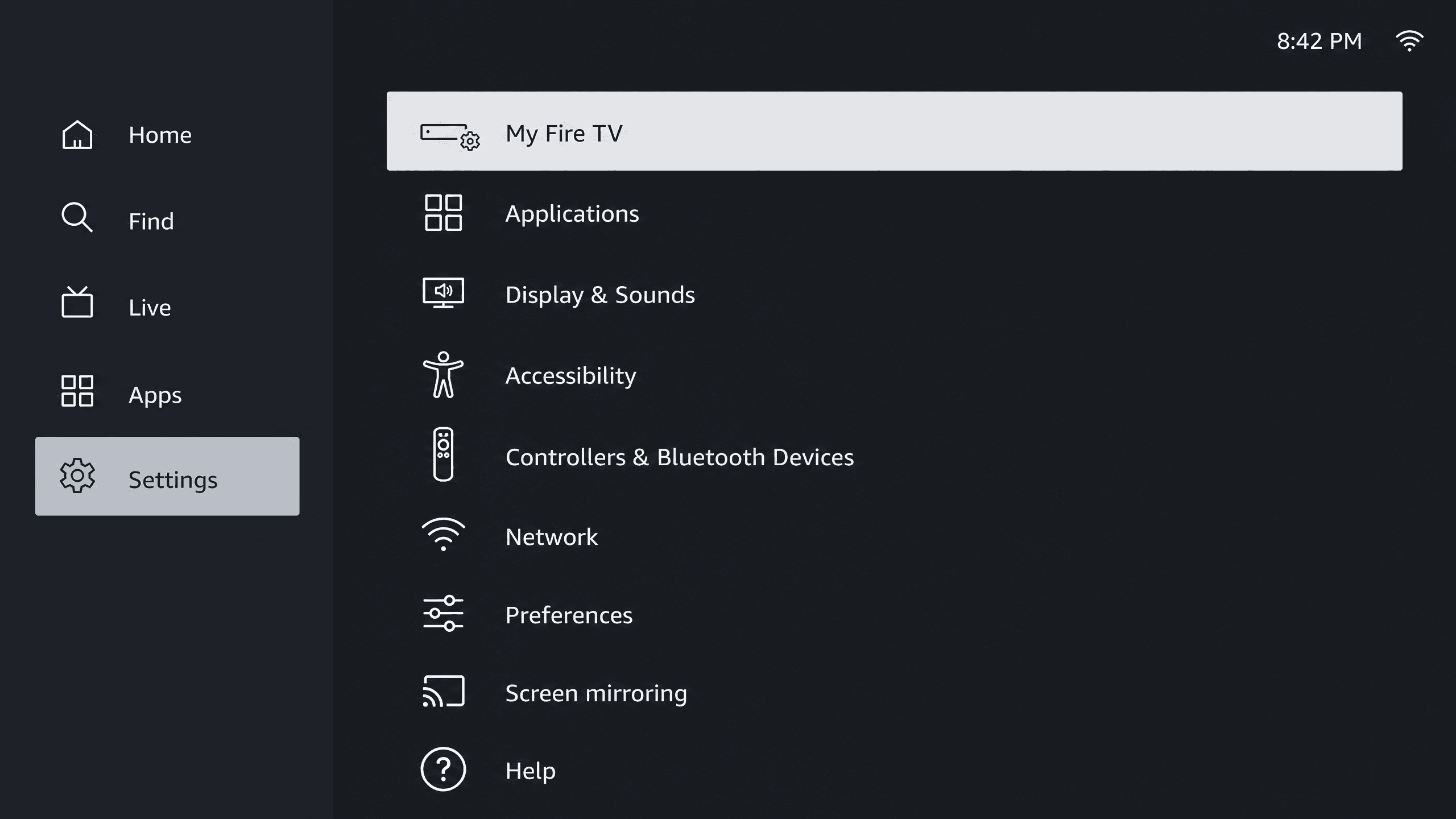
- From the Firestick home screen, go to Settings.
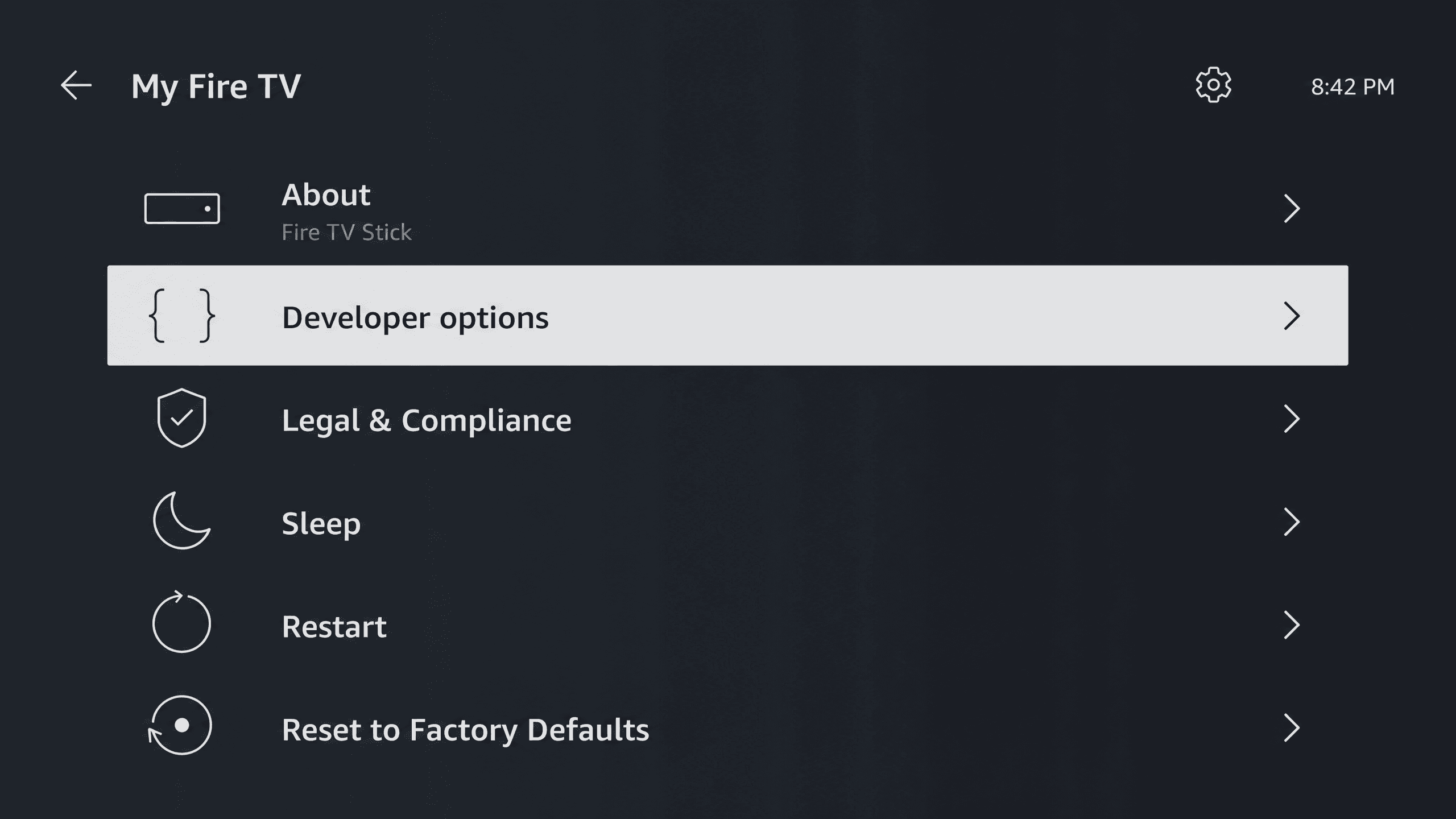
- Select My Fire TV (or Device on newer models).
- Select Developer Options.
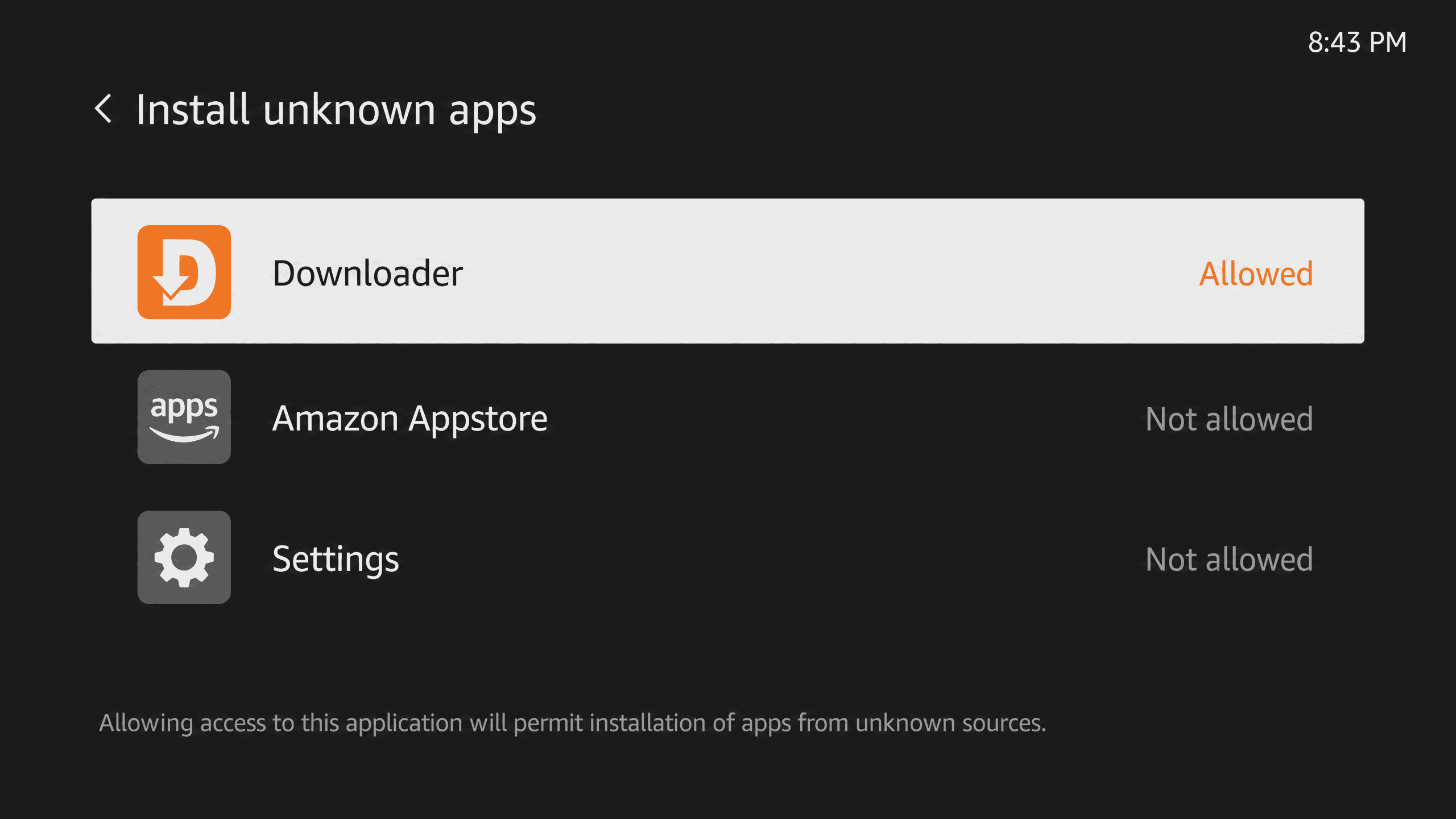
- Turn on Apps from Unknown Sources.
- Confirm when prompted.
Step 2: Install the Downloader App
Downloader is a free app that lets you install IPTV player apps directly using a code, without needing a computer.
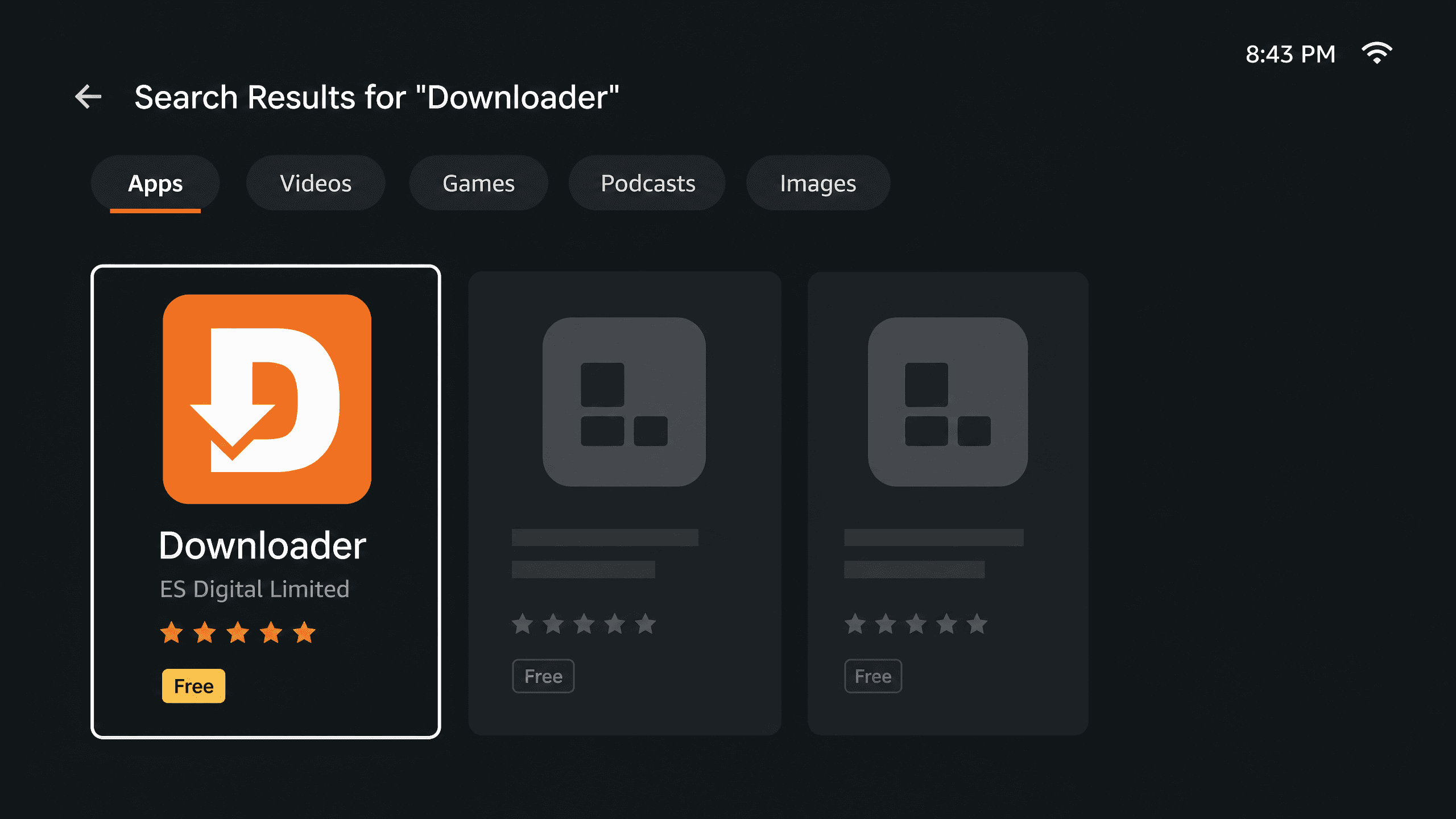
- From the Firestick home screen, search for Downloader in the search bar.
- Select it from the results and click Get / Download.
- Open Downloader once installed.
Step 3: Install the Hot Player App
UniStream uses Hot Player — a lightweight media player app that loads your channel list once your subscription is linked to your device.
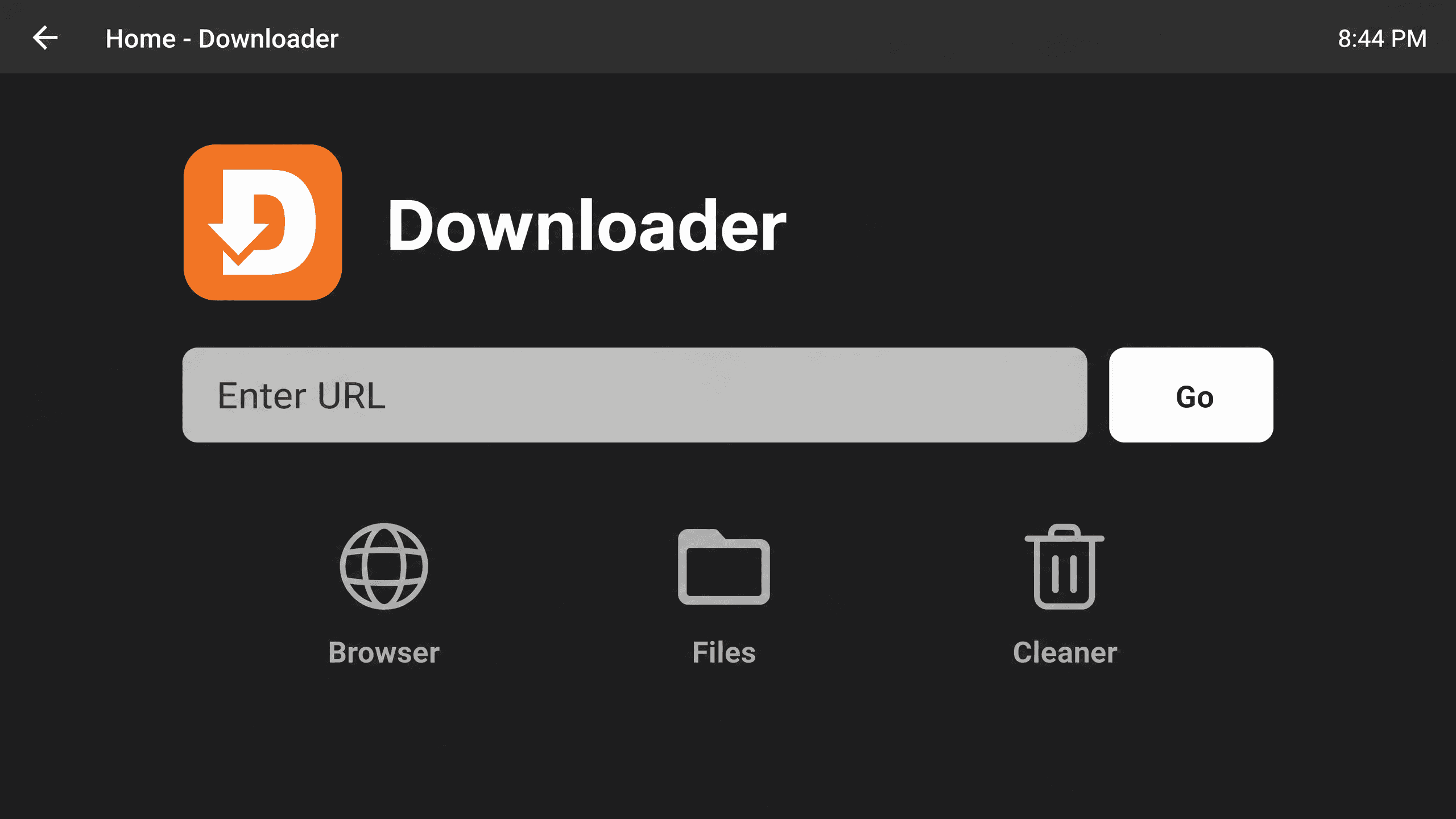
- In Downloader, type hotplayer.app into the URL box and select Go.
- Download the Fire TV / Android version from the page that loads.
- When the download finishes, select Install.
- Once installed, select Open (or find the Hot Player icon on your home screen).
If a security warning appears during install, this is expected for any app installed outside the Amazon Appstore — select Install anyway to continue.
Step 4: Send Us Your MAC Address
This is the step that surprises most people — you do not need to enter any usernames, passwords, or playlist URLs yourself. We handle the activation for you.
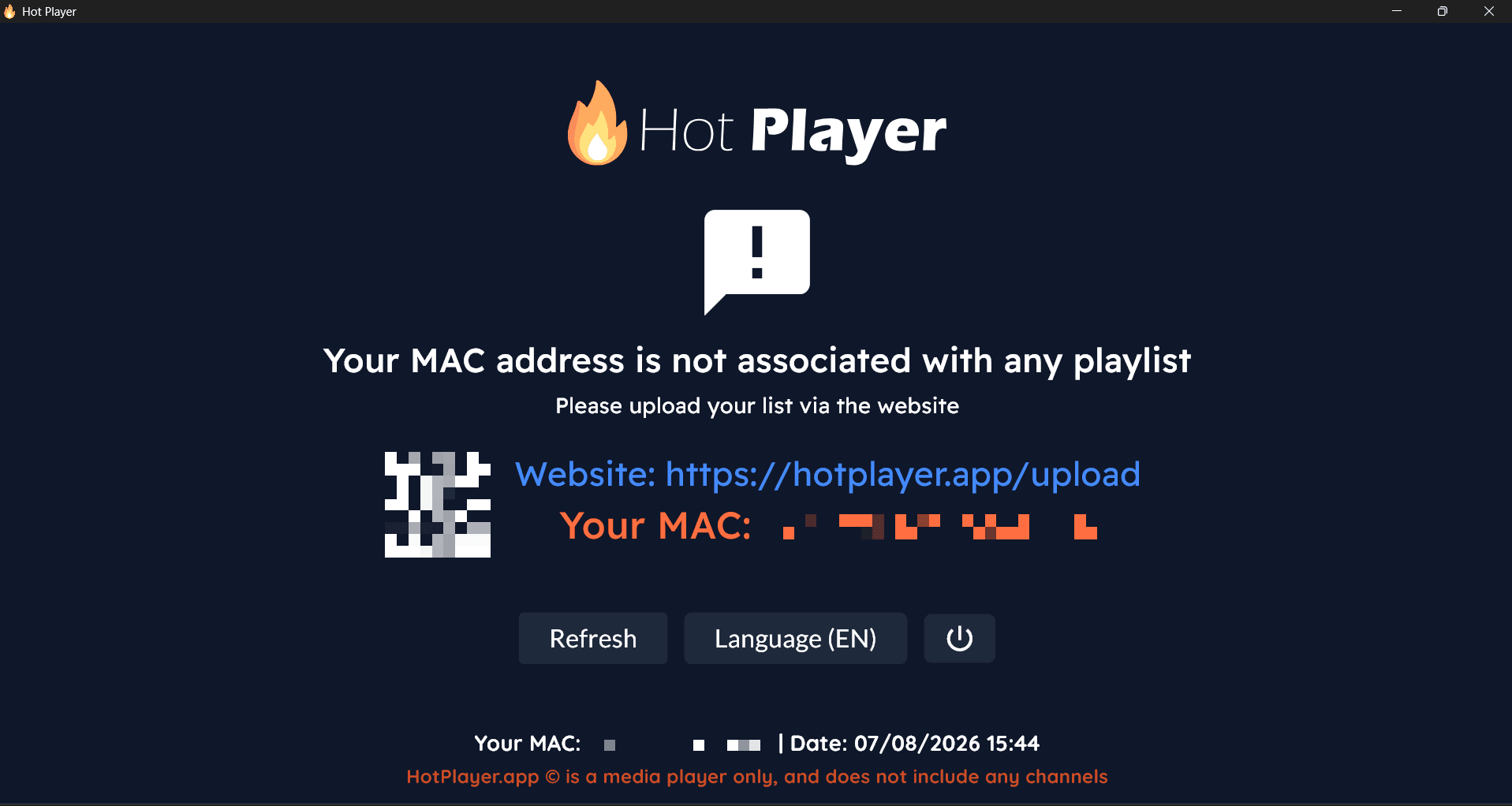
When you first open Hot Player, it will display a message saying your MAC address is not yet associated with any playlist, along with your device's MAC address (it looks something like TS:19:FD:CA:CB:15).
- Note down the MAC address shown on screen.
- Send it to us on WhatsApp, along with your order details.
- We activate your device and upload your playlist from our end — usually within minutes.
Step 5: Refresh and Start Watching
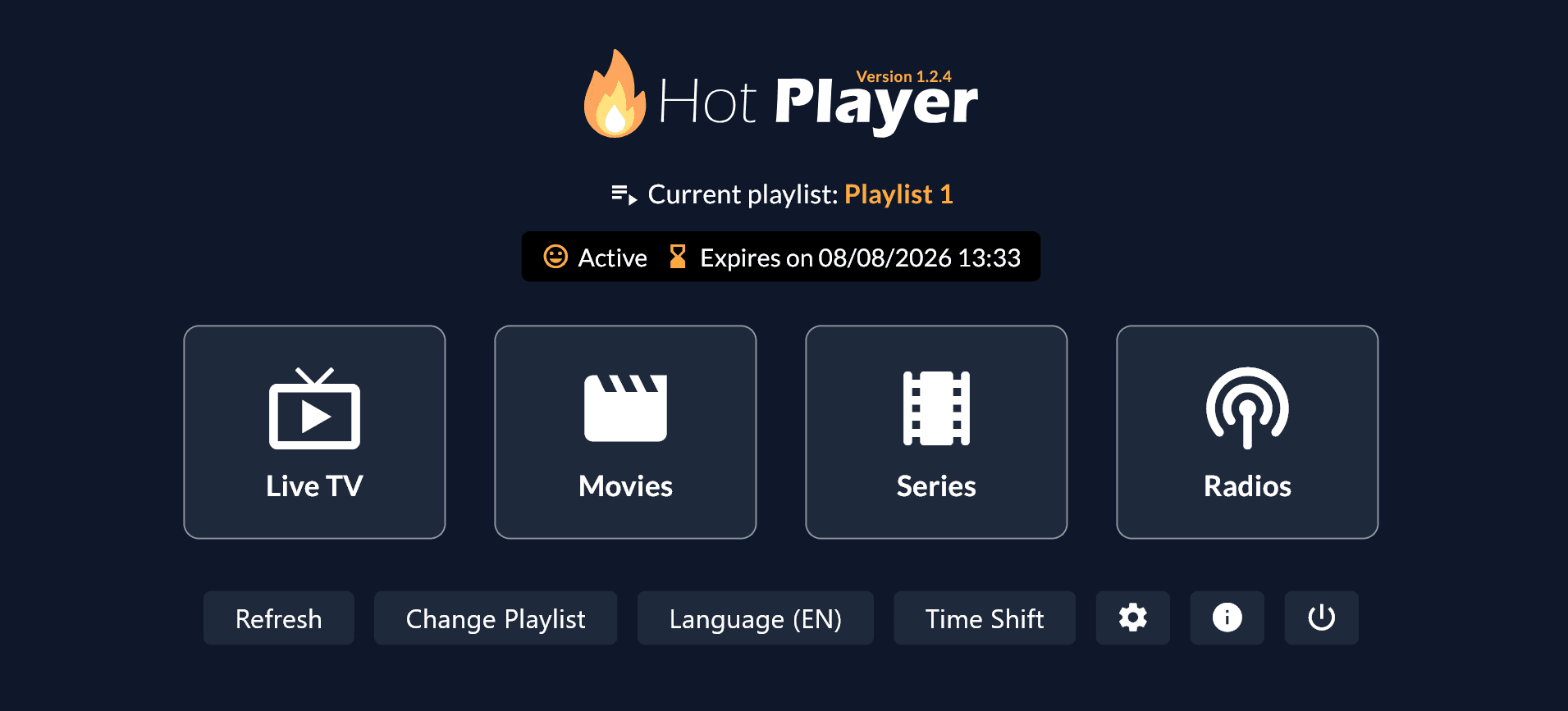
Once we confirm your device is activated, select Refresh in Hot Player. Your subscription status will change to Active with your expiry date shown, and the main menu will load with Live TV, Movies, Series, and Radios.
From there you can browse live channels, use the programme guide to see what's on, and access the full on-demand library. If nothing loads on the first try, give it a minute and hit Refresh again.
Don't have an IPTV subscription yet? Get a free 24-hour trial — no payment needed.
Start Free Trial →Common Firestick IPTV Issues (and Fixes)
Buffering or Freezing
Usually caused by a slow or congested Wi-Fi connection. Try moving your router closer, switching to a 5GHz band, or connecting the Firestick via an Ethernet adapter for a more stable connection.
App Won't Install
Double-check that Apps from Unknown Sources is enabled for Downloader specifically, not just the general Developer Options toggle. Some Firestick software versions require enabling this per-app.
Channels Not Loading / Still Says Not Activated
Select Refresh in Hot Player first — the playlist only appears after activation is complete on our end. If it still shows as not associated with a playlist, double-check that the MAC address you sent us matches the one on screen exactly, then message us on WhatsApp and we'll confirm your device status.
Is This Legal on Firestick?
The Firestick itself is a completely legal Amazon device. What matters is the licensing status of the IPTV service you connect to it — the same as with any streaming device. Choose a provider with clear, responsive customer support and verified customer reviews.
Get Set Up with UniStream
UniStream works seamlessly with Firestick via Hot Player, with 39,000+ live channels, 220,000+ movies, and 80,000+ series across 4K UHD, Full HD, and HD. Because we handle activation for you, there are no credentials to type in — just send us your MAC address and we do the rest. Support is available 24/7 on WhatsApp if you get stuck.
Want to test it on your own Firestick first? Claim a free 24-hour trial before committing to a plan.
Using something other than a Firestick? The same MAC activation process works across all supported devices, including Samsung and LG Smart TVs, Android TV boxes, and Formuler and MAG boxes.
Try UniStream Free for 24 Hours
No payment needed. Full access via WhatsApp.